
March 6, 2024
Solved

Want to elect De Minimis Safe Harbor, but only Section 179 option offered

  • March 6, 2024
  • 3 replies
  • 0 views

In 2021 and 2022 I made the De Minimis Safe Harbor Election for three asset purchases, and they are now listed under “Special Depreciation” in TurboTax.   No assets from previous years are listed under “Section 179.”


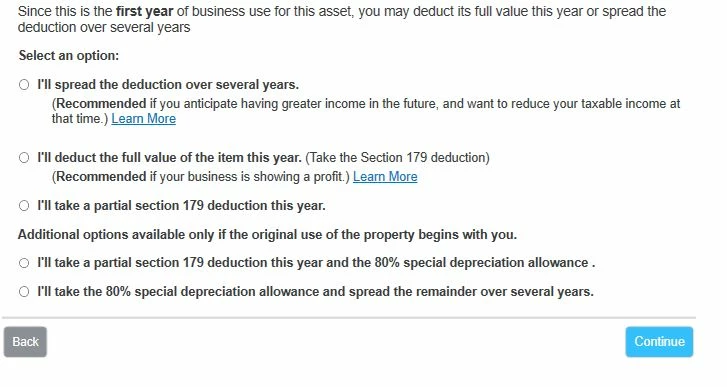
This year I again want to elect the De Minimis Safe Harbor.   But the only way TurboTax will let me depreciate the asset all in one year is by electing Section 179 depreciation.  


I attach a screen shot of the options I’m given.


How do I expense an asset using the De Minimis Safe Harbor election?


Thanks.
 

    Best answer by Anonymous_

    The proper way to do this (de minimis safe harbor) is as follows:


    NOTE: The item is entered as a miscellaneous expense in the Expense subsection (not as an asset).


    Untitled.png2.png3.png4.png

    3 replies

    Employee
    March 7, 2024

    Did you answer the question on a previous screen to the effect that the asset cost $2,500 or less?


    On the screen in your screenshot, you will not see the de minimis safe harbor election (it's on a previous screen).

    March 7, 2024

    In TurboTax Onlne, to make the de Minimus Safe Harbor Election, return to the Start/Review page for your business:


    1. Open your tax return in TurboTax.
    2. Search for business expenses in the search bar and select the Jump to link in the results.
    3. On the Did you have any self-employment income? screen, answer Yes, and answer the questions about your business until you reach the Did you have any expenses for your work in 2023? screen. Answer Yes to continue.
    4. When you reach the expenses you know you had screen, select Assets, then Continue.
      • If you land on the Your 2023 self-employed work summary screen, either select Edit beside the work you wish to add assets for, or select Add a new line of work to add a new business. Then you can step through the interview until you get to the Here’s your [business] info screen.
      • Scroll down to the Add expenses for this work option. Select Assets under Less Common Expenses, then Continue. This will return you to the Here’s your [business] info screen.
    5. On the Here's your [business] info screen, select Start or Update next to the Assets category, under Expenses.
    6. Answer Yes to the question Did you buy, or do you already own, any depreciable assets related to this business (other than vehicles)?
    7. On the next screen, answer Yes to the question Did you buy any items that each cost $2,500 or less in 2023?
    8. Answer the questions on the following screens. On the screen Now, let’s review each item you bought:
      • If you select Every item I bought costs $2,500 or less, you will be taken back to the Your [business] info screen, where you can enter each item you would like to expense in the Expenses section.
      • If you select Some items I bought cost $2,500 or less and some cost above $2,500, you will be asked about building improvements on the next screen.
      • If you made building improvements for your business in 2023, answer Yes, and follow the instructions below to make the Safe Harbor Election for Small Taxpayers.
      • If you didn’t make any building improvements, answer No, and continue through the questionnaire to return to the Your [business] info screen. We will generate the De Minimis Safe Harbor Election form and add it to your tax return.


    If you are using TurboTax Desktop:


    1. Sign in to the software and open your tax return.
    2. Search for business expenses in the search bar and select the Jump to link in the results.
      • If you land on the Business Summary screen, select Edit next to the business you’re entering assets for, or Add another business to enter a new business.
    3. Answer the questions about your business until you get to the Business Expenses screen.
    4. Select Start or Update next to Assets Being Depreciated.
    5. Answer Yes to the question Did you buy, or do you already own, any depreciable assets related to this business (other than vehicles)?
    6. On the next screen, answer Yes to the question Did you buy any items for any business, rental property and/or farm that cost $2,500 or less in 2023?
    7. Answer the questions on the following screens. On the screen Now, let’s review each item you bought:
      • If you select Every item I bought costs $2,500 or less, you will be taken back to the Your Business screen, where you can enter each item you would like to expense in the Other Miscellaneous Expenses section.
      • If you select Some items I bought cost $2,500 or less and some cost above $2,500, you will be asked about building improvements on the next screen.
      • If you made building improvements for your business in 2023, answer Yes, and follow the instructions below to make the Safe Harbor Election for Small Taxpayers.
      • If you didn’t make any building improvements, answer No, and continue through the questionnaire to return to the Your Business screen. We will generate the De Minimis Safe Harbor Election form and add it to your tax return.


    **Say "Thanks" by clicking the thumb icon in a post**Mark the post that answers your question by clicking on "Mark as Best Answer"
    randy5419Author
    March 7, 2024

    On the previous screens, I followed the desktop instructions exactly.  

    March 7, 2024

    If you get to Assets Being Depreciated, below are the screens you should see.  If you're not seeing these screens, let us know.


    **Say "Thanks" by clicking the thumb icon in a post**Mark the post that answers your question by clicking on "Mark as Best Answer"
    March 8, 2024

    I have opened a sanitized version of your tax return in TurboTax and gone through the steps to make the De Minimus Safe Harobor Election.  Here are the step-by-step instructions:


    • Click on the Federal Taxes tab
    • Click on Wages & Income 
    • Click on Continue 
    • Answer "I'll choose what I work on"
    • Next to "Rental Properties" click on Update or Start 
    • For the questions about real estate professional, answer "None of the above"
    • Next to one of your Properties, click on "Edit"
    • Scroll down to Assets/Depreciation  and click on Update 
    • You should see the question "Do you want to go Directly to Asset Summary"?  Indicate "No - I want to review my answers..."
    • The next screen will be "Did you buy any items for any business, rental property and/or farm that cost $2,500 or less in 2023?
    • Indicate Yes and click on Continue

    You will be asked if every item cost $2,500 or less.  If you answer No, you will be asked additional questions about making improvements to the property.  If you answer Yes, your next screen will be your Asset Listing.  You will want to delete your Water Heater that cost $1,386 in order to expense the entire amount.  You will then enter your Water Heater in the expenses section.  If you answer No to the question above, you will be asked additional questions about making improvements to the property, but will end up in the same place.


    Based on your last response, I think the problem may have been that you were entering items as Assets and expecting/looking for the option to take the De Minimus Safe Harbor election and expense 100% of the asset.  That's not how it works.  When you indicate that you have purchases $2,500 or less and want to expense them, the program adds the safe harbor election to your return.  You then add all items that cost $2,500 or less as an Expense, rather than setting them up as Assets.  When you take the election, it applies to all items that cost $2,500 or less.  You cannot pick and choose which ones you want to add as an asset and which ones you want to add as an expense.     


    Let us know if you're able to make it work.

    **Say "Thanks" by clicking the thumb icon in a post**Mark the post that answers your question by clicking on "Mark as Best Answer"
    randy5419Author
    March 8, 2024

    Thank you so much for your help.  But my problem is not yet solved.  


    The way you say this works does not accord with how I did my 2021 and 2022 taxes.   The items I was able to expense 100 percent in those years were entered in the Assets/Depreciation part of the program, and the amounts were part of Line 18 on Schedule E and Line 14 (Special Depreciation) of Form 4562 (Depreciation and Amortization).   If you open my file again, you’ll see that the items I expensed in 2021 and 2022 are in the Special Depreciation column on the assets list.  


    This year (and in previous years), when I open the “Expenses” part of the program, I’m only able to enter the amounts that go into Lines 5-17 of Schedule E.    There is no place to enter a hot water heater purchase, for example. 


    With regard to the De Minimis Safe Harbor, I’m pretty sure the 2023 Turbotax is  not behaving like the 2021 and 2022 Turbotax.

    Employee
    March 8, 2024

    The proper way to do this (de minimis safe harbor) is as follows:


    NOTE: The item is entered as a miscellaneous expense in the Expense subsection (not as an asset).


    Untitled.png2.png3.png4.png




