
April 5, 2025
Question

Sales Tax for major purchases is incorrect

  • April 5, 2025
  • 1 reply
  • 0 views

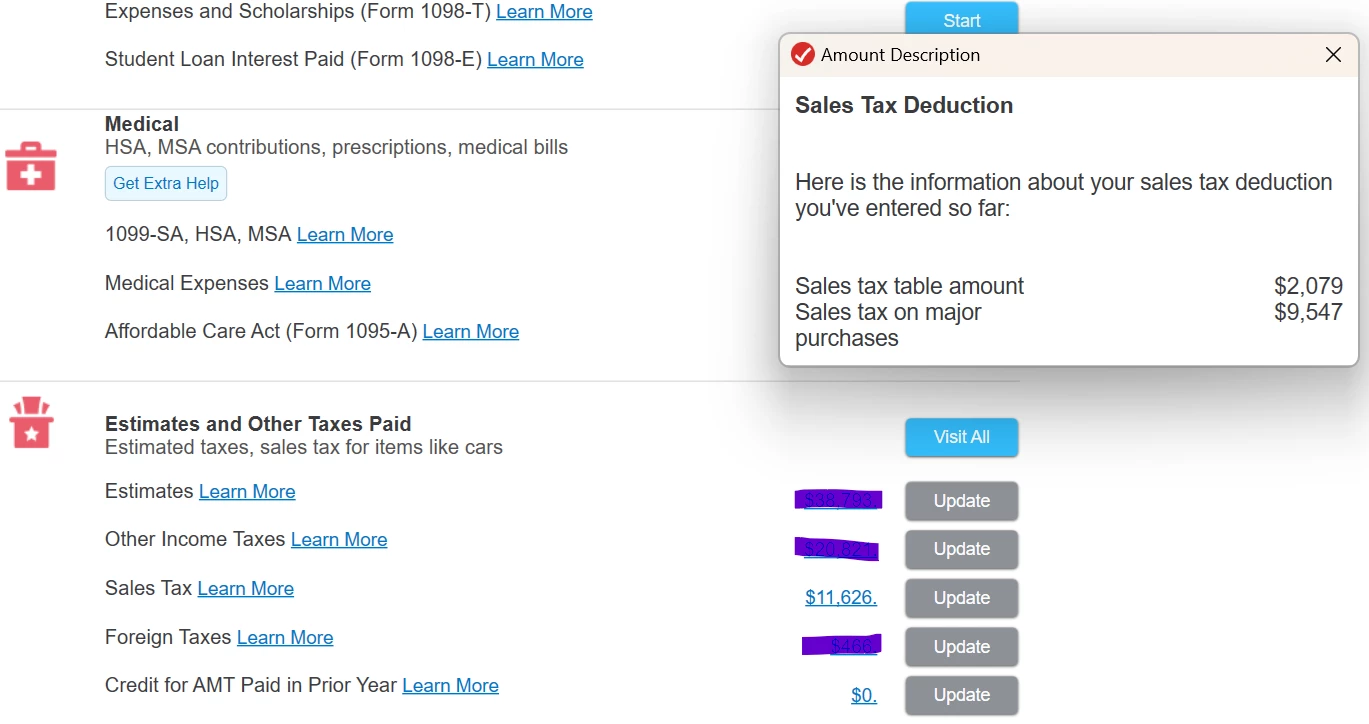
The Sales Tax on purchases paid for 2 vehicles in 2024 was 4773.40. This is shown correctly when in the Easy Guide for Sales Tax Info section (there were no other major purchases besides the 2 cars).
But the under Deductions and Credits / Estimates & Other Taxes paid / Sales Tax, the major purchases is shown as $9,547, which is incorrect.

How do I fix this?


    1 reply

    April 5, 2025

    Double check Easy Guide to be sure the amount isn't entered twice, since the value you are looking for has been exactly doubled under credits and deductions. 


    If it looks fine, try deleting your entry, saving, ensuring major purchases now shows zero in deductions, and entering it again.


    Mitzy20Author
    April 5, 2025

    MindyB,

    Thanks for your reply but this has not completely fixed the problem.  
    I was able to remove the vehicle sales tax for the major purchases from TT within the Easy Guide to Sales Tax, though the summary info in this section (see 1st snapshot) still shows the 4773.51, instead of 0. 

    The Forms view also shows the sales tax even though it was supposedly cleared out.

    While 4773.51 is the correct number for sales tax (it is no longer doubled), shouldn't  the summary level and detail level in TT  and the FORMS match?  I have gone thru the Federal Review and there were no errors.
    i am not comfortable with the discrepancy in TT . How can I get all information to match?

    See snapshots.


    April 5, 2025

    I would like to take a deeper look at this. However, I need a diagnostic file which is a copy of your tax return that has all of your personal information removed. You can send one to us by following the directions below:


    TurboTax Online:

    1. Sign into your online account.
    2. Locate the Tax Tools on the left-hand side of the screen.
    3. A drop-down will appear. Select Tools
    4. On the pop-up screen, click on “Share my file with agent.”
    5. This will generate a message that a diagnostic file gets sanitized and transmitted to us.
    6. Please provide the Token Number that was generated in the response.

    TurboTax Desktop:
    If you like, you can send a copy of your return that will be scrubbed to eliminate your personal data by using these steps:
     

    1. Click on Online in the top left menu of TurboTax Desktop for Windows
    2. Select 'Send Tax File to Agent'* > Follow the prompts to reach the token number.
      • Enter your email used for TurboTax > Enter your code > Send
    3. Write down or send an image of your token number and state then place in this issue.
    4. We can then review your exact scenario for a solution.
    5. Please also tell us any states included in the return. This is necessary for us to view the return.
      • *If using a MAC, go to the menu at the top of the screen, select Help, then, 'Send Tax File to Agent')




